Save recipes from anywhere
Found a recipe on Instagram, TikTok, YouTube or a food blog? Send it to Choply and the AI turns it into a recipe you can cook from, with ingredients, steps and times. The original creator is credited on the recipe.
Needs Choply 1.1.0 or later on iPhone or Android. Each AI import uses 10 fuel; new accounts start with 100.
From Instagram
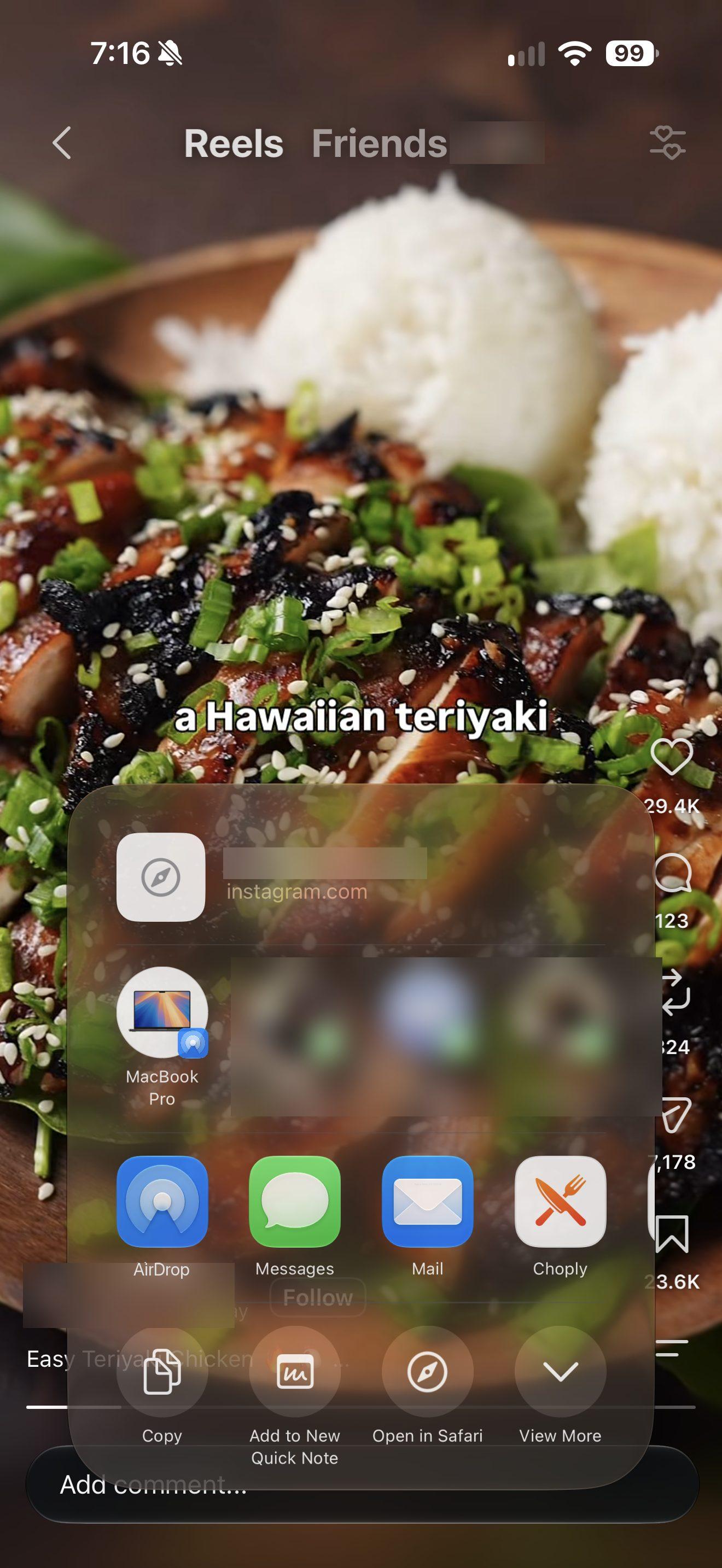
Open the post or reel and tap the paper plane. That opens Instagram's own share menu; tap “Share” at the bottom of it to get your iPhone's share sheet, then choose Choply from the row of apps.
If Choply isn't in the row, scroll it to the end and tap “More” (see below).
From TikTok
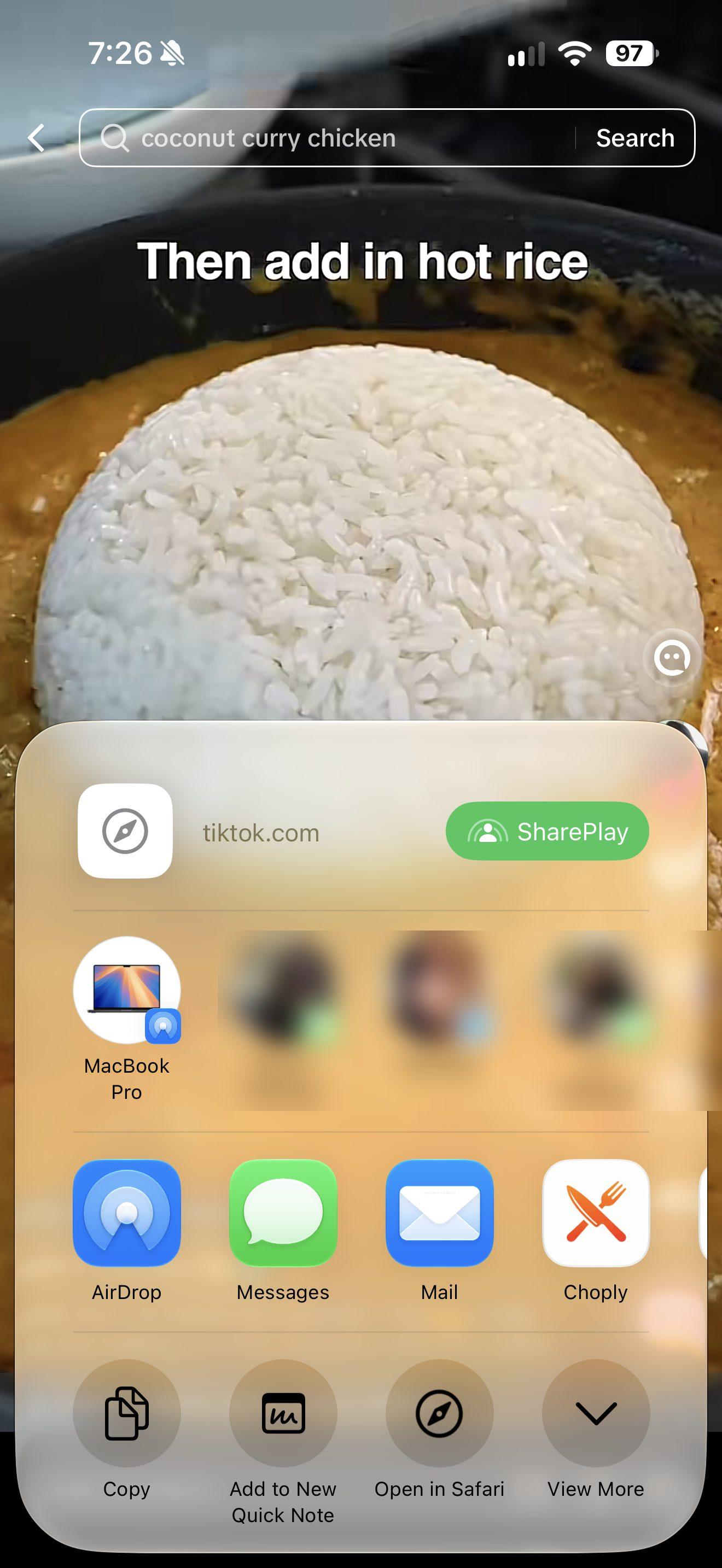
Tap the Share arrow on the video. That opens TikTok's own share menu; scroll its bottom row all the way to the right and tap “More” (the … icon) to get your iPhone's share sheet, then choose Choply.
From YouTube
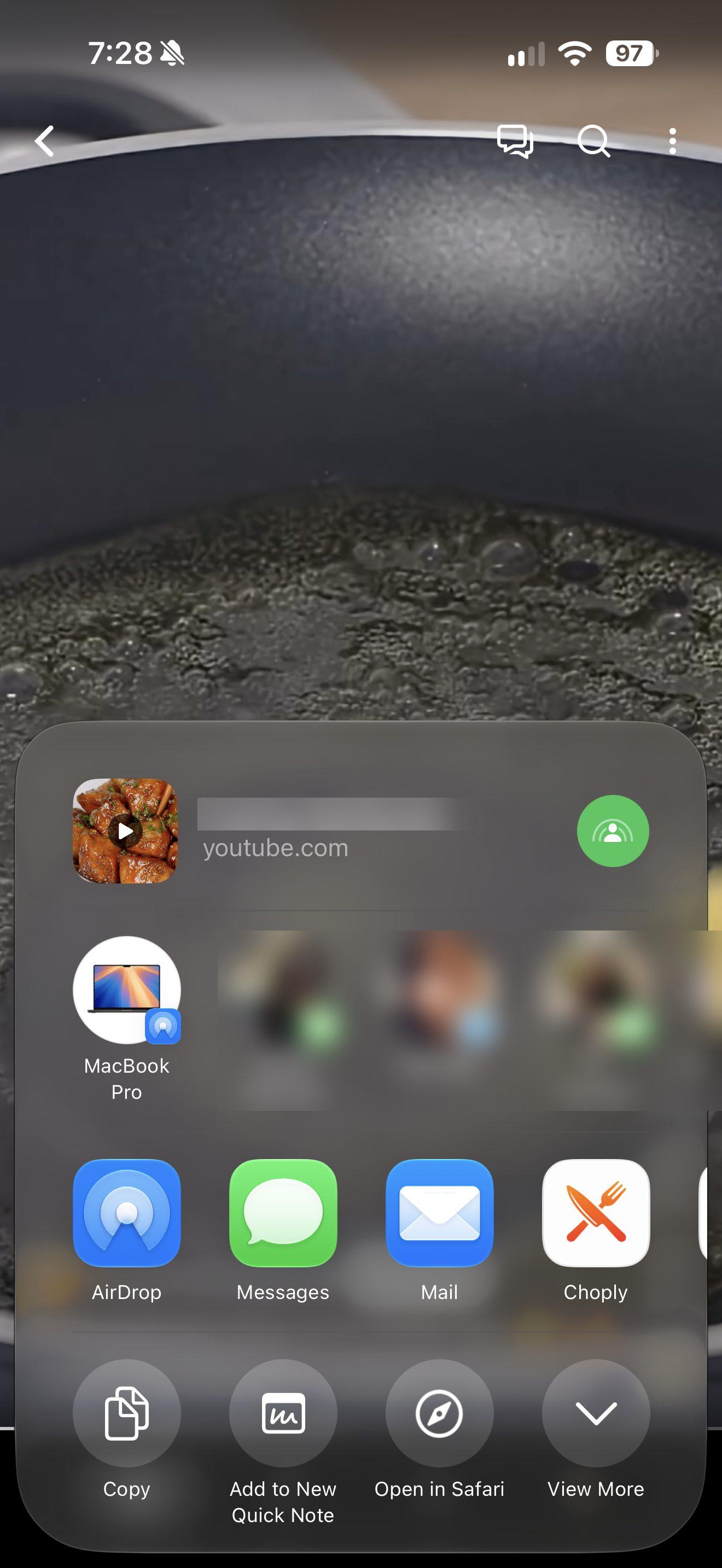
Tap Share on the video. Like TikTok, YouTube opens its own share menu first; tap “More” (the … icon) at the end of its row of apps to get your iPhone's share sheet, then choose Choply.
Choply reads the video's description, so it works best when the recipe is written there.
From a recipe website
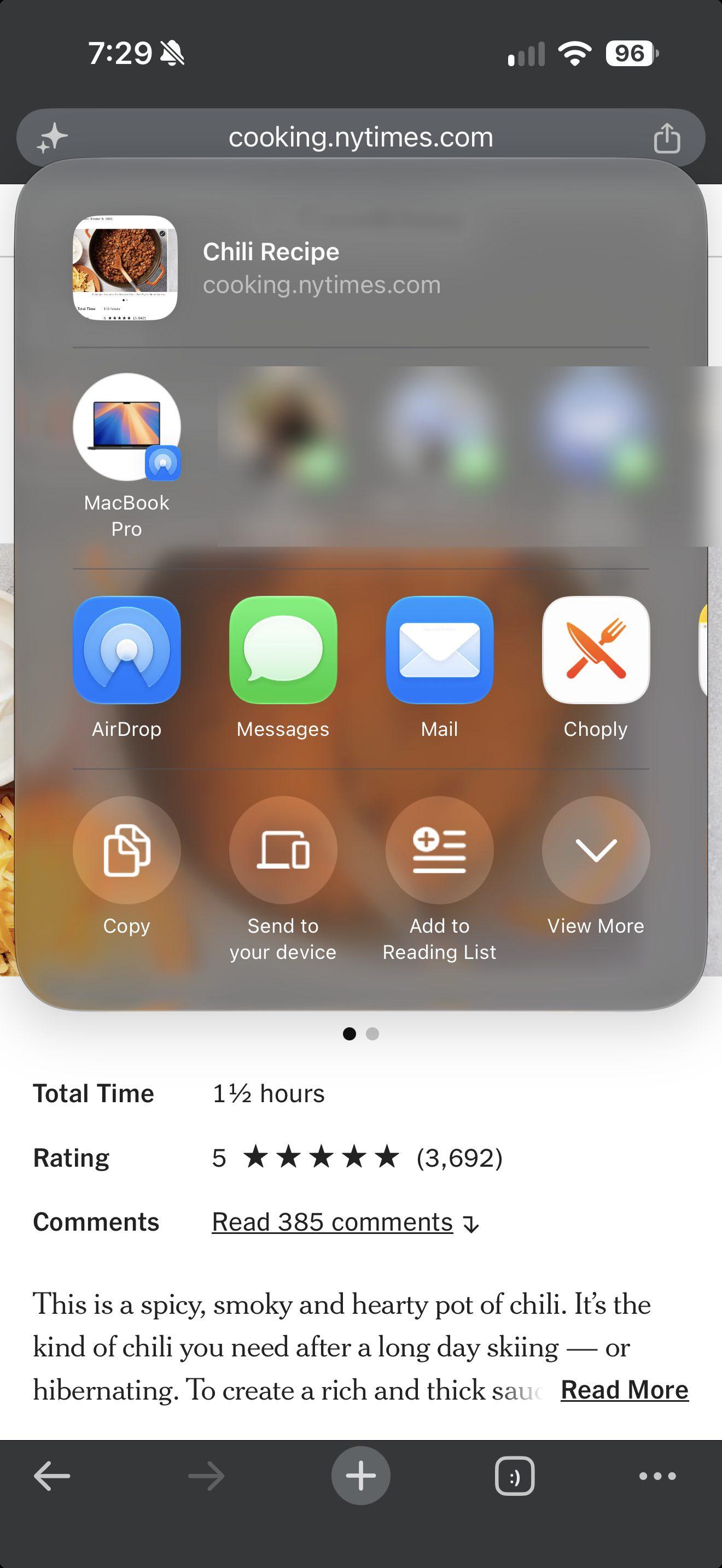
Open the recipe page and tap the Share button (in Chrome it's at the right end of the address bar), then choose Choply.
Most food blogs work, including the ones with a long story before the recipe.
First time? Add Choply to your share sheet
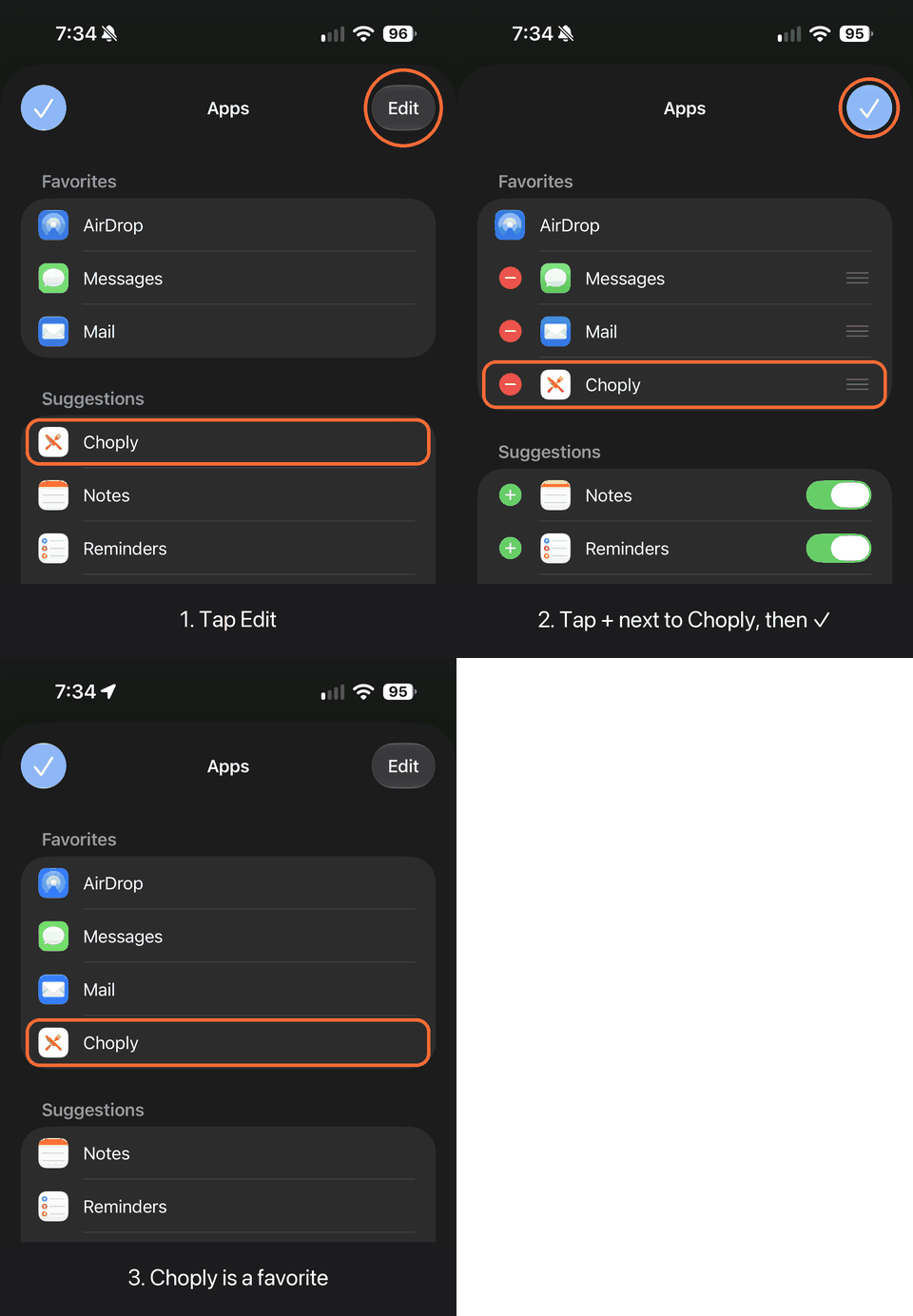
On iPhone, Choply may not be in the row of apps the first time. Scroll the row of apps to the end and tap “More”. Tap Edit, tap the green + next to Choply, then tap ✓. Choply is now a favorite and shows up near the front of the row every time.
On Android, Choply appears in the share menu right after you install it.
Choply does the rest
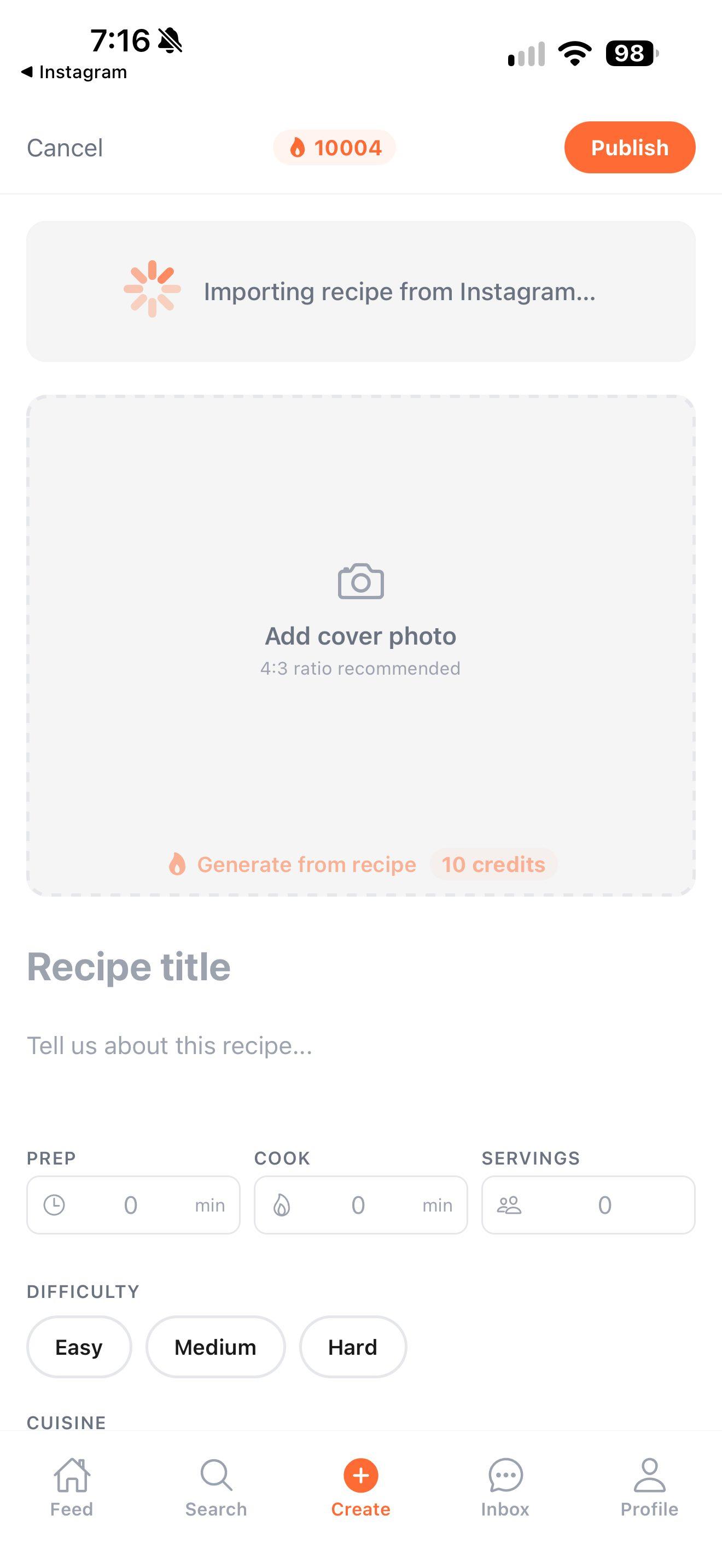
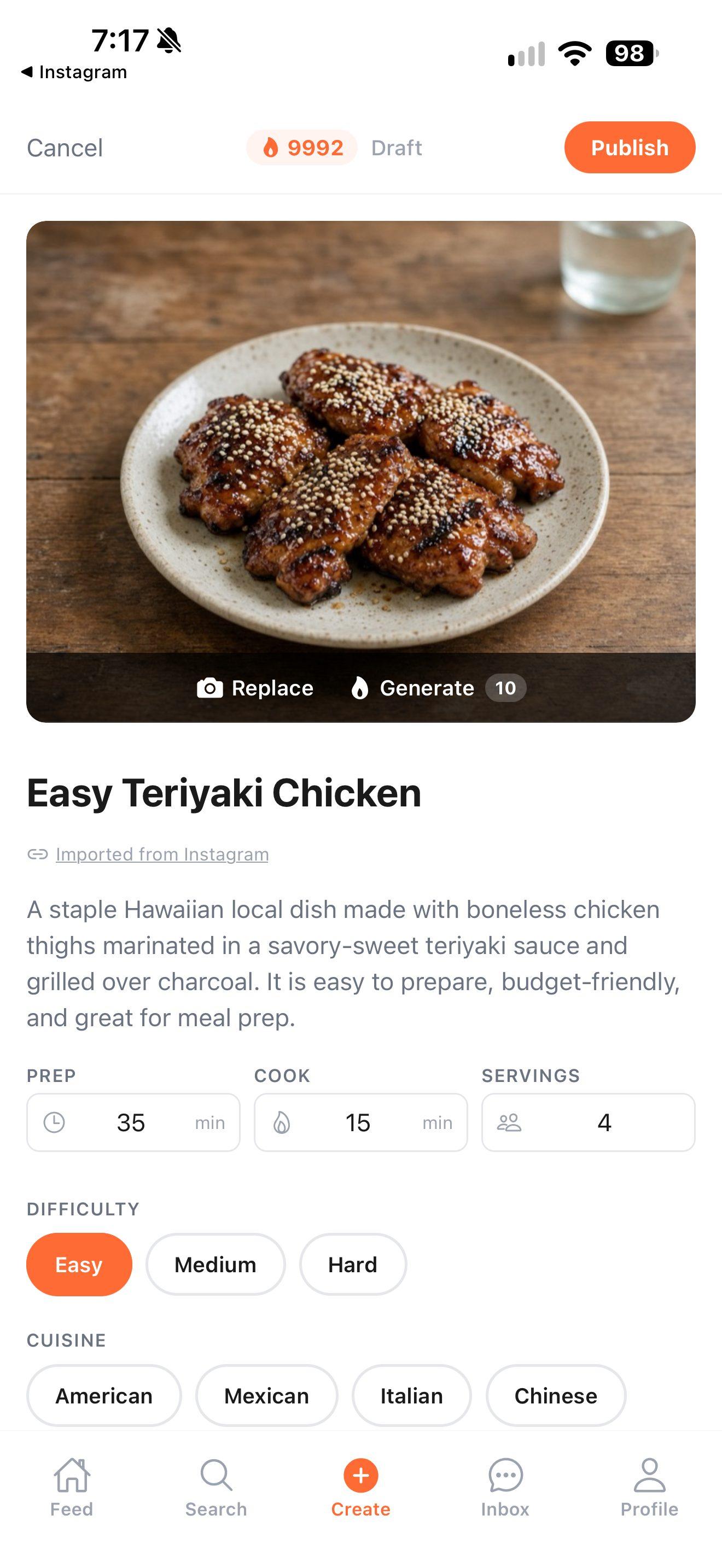
Choply opens and shows “Importing recipe from Instagram…”. After a few seconds the recipe fills in: title, description, times, ingredients and steps.
Check it over and publish
The recipe is a draft in the Create tab, linked back to the original post. Edit anything you like, add a cover photo or generate one, then save or publish it.
Or paste a link
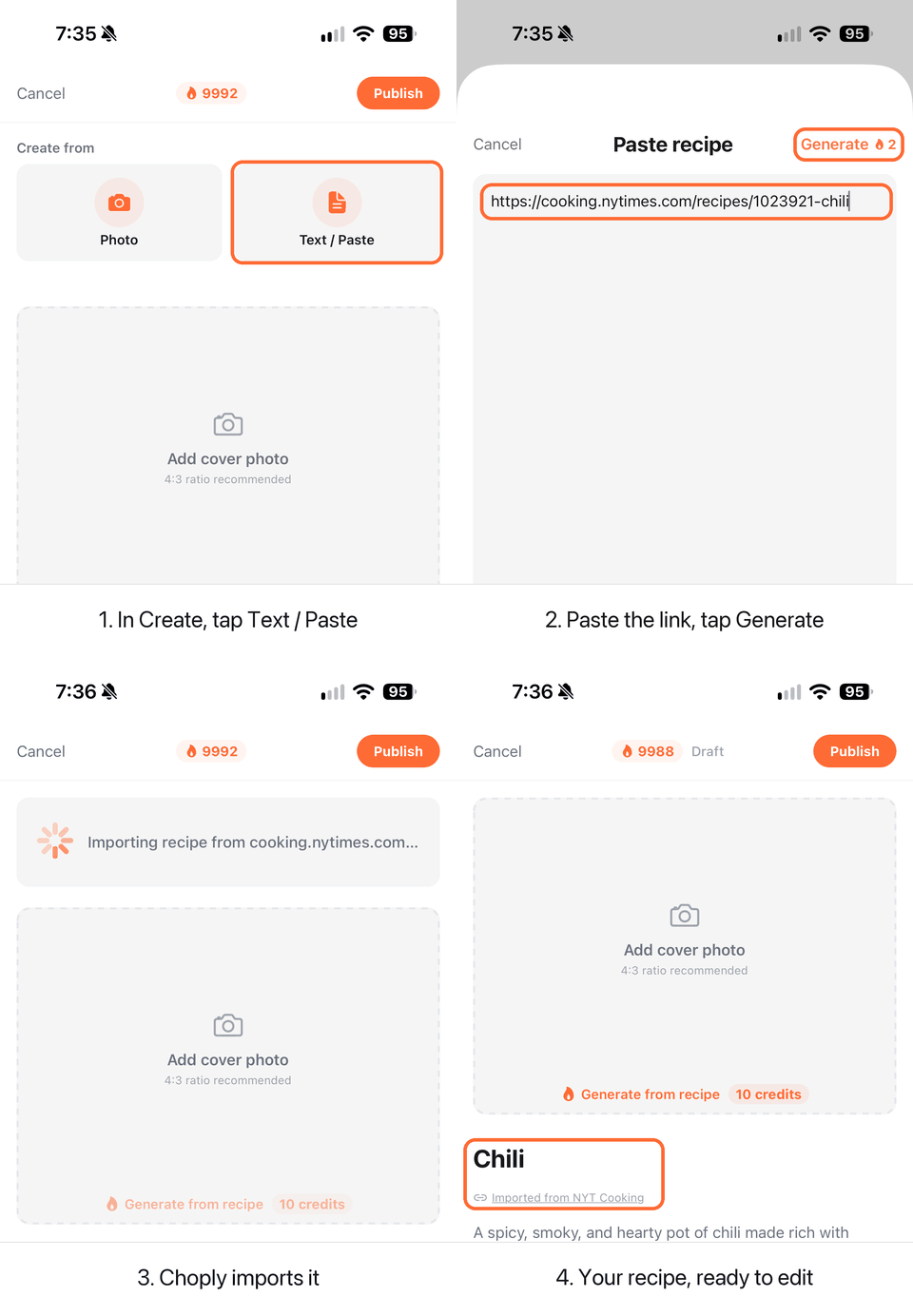
Copy the post's link, open the Create tab, tap Text / Paste, paste the link on its own, and tap Generate. Choply imports it the same way.
If something goes wrong
“No recipe found”
Choply reads the post's caption or description, not the video. If the recipe is only spoken in the video, there's nothing to read yet. Choply opens the paste box so you can type or paste the recipe instead. You aren't charged fuel for a link that had no recipe.
An Instagram post won't import
Instagram sometimes blocks the caption from being read. Copy the caption text in Instagram (tap and hold it, or use “Copy” from the post's menu) and paste it into Text / Paste in the Create tab instead.
Choply isn't in the share sheet
Make sure you have Choply 1.1.0 or later from the App Store, then check the “More” list as described above. On Android, install the latest beta from choply.app.
I shared a link but nothing happened
You need to be signed in. If you weren't, the link waits and imports once you sign in. If you're out of fuel, Choply tells you and shows how to get more; see fuel.
Still stuck? Email support@choply.app with the link you tried.